* 主體類型
* 企業名稱
* 信用代碼
* 所在行業
* 企業規模
* 所在職位
* 姓名
* 所在行業
* 學歷
* 工作性質
請先選擇行業
您還可以選擇以下福利:
行業福利,領完即止!

下載app免費領取會員



Navisworks教程 | How to display colors in Navisworks
發布于:2024-12-03 01:20:02
首頁/技術分享/Navisworks
收藏
824

BIM中文網
更多
p>Navisworks is a comprehensive software used in the construction industry, which allows professionals to virtually design, review, and analyze building information models (BIM). One essential feature of Navisworks is the ability to display colors, which enables users to visualize various elements of a project in a more intuitive and realistic way. In this article, we will explore how to display colors in Navisworks and understand its significance in the construction workflow./pp>Firstly, let's discuss the importance of displaying colors in Navisworks. Colors play a crucial role in BIM as they help differentiate between different building elements such as walls, doors, windows, and utilities. By assigning distinct colors to each element, designers and project stakeholders can easily identify and understand the various components of the building model. This not only enhances visual clarity but also aids in effective communication among team members involved in the construction process./pp>Now, let's delve into the steps involved in displaying colors in Navisworks. The software offers multiple options to accomplish this, including applying colors based on selection, by element, or through a custom color scheme. The simplest method is to apply colors based on selection. To do this, select an object or a group of objects in the model and right-click. From the context menu, choose "Properties." In the Properties dialog box, navigate to the "Appearance" tab. Here, you can select a color from the drop-down menu or define a custom color using the RGB values. Once you have chosen the desired color, click "OK" to apply it to the selected objects./pp>If you wish to apply colors to specific building elements, Navisworks provides an efficient solution. Start by selecting the desired element, such as a wall or a floor. Then, navigate to the "Appearance" tab in the Properties dialog box. Here, you can select the "Override item" option to apply a color specifically to the selected element. This feature is particularly useful when highlighting specific elements for coordination or clash detection purposes, making it easier to identify potential issues in the BIM model./pp>Alternatively, Navisworks allows users to create custom color schemes to apply to their building models. To do this, go to the "Appearance" tab and select the "Editor" option. In the Appearance Editor, you can choose from a range of predefined color schemes or create your own by selecting individual colors for various elements. This feature is especially helpful in large-scale projects where different colors may represent different phases of construction or serve as a visual aid for specific disciplines, such as MEP (mechanical, electrical, and plumbing) systems./pp>In addition to the above methods, Navisworks also supports the import of color data from other software applications. This feature enables users to retain the color information assigned to objects in the original BIM authoring tool, facilitating seamless collaboration and data integration across different platforms./pp>Displaying colors in Navisworks offers numerous benefits throughout the construction workflow. Firstly, it aids in visual comprehension, allowing stakeholders to understand the building model more effectively and make informed decisions. Secondly, color-coding different elements fosters efficient coordination among the various trades involved in the project. This is particularly important during the clash detection process, where clashes between different systems or elements can be quickly identified by their corresponding colors. Moreover, the ability to display colors enhances the overall presentation of the BIM model, making it more appealing and engaging for clients and project stakeholders./pp>In conclusion, the ability to display colors in Navisworks is a valuable asset in the construction industry. It facilitates effective communication, simplifies coordination, and enhances the visual representation of building models. By following the steps outlined in this article, users can harness the full potential of Navisworks to create vibrant and informative BIM models that contribute to successful construction projects./p




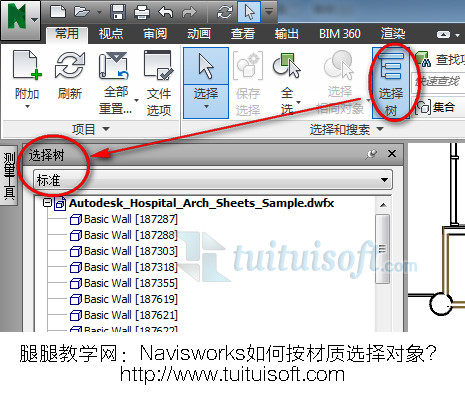
.jpg "How to display colors in Navisworks")
本文版權歸腿腿教學網及原創作者所有,未經授權,謝絕轉載。
上一篇:Navisworks教程 | 使用Navisworks進行貼圖處理
下一篇:Navisworks教程 | 如何在Navisworks中調整背景顏色
猜你喜歡
Autodesk Navisworks 如何修改自定義第三人外觀
Navisworks全屏后如何退出全屏?
Autodesk Navisworks 默認快捷鍵!
Navisworks如何更新選擇集?
Navisworks教程 | Navisworks 如何錄制過渡自然的視點動畫
Navisworks如何按材質選擇對象?
最新課程


推薦專題













- Navisworks教程 | 如何退出Navisworks的全屏模式?
- Navisworks教程 | 如何在Navisworks中查找對象?
- Navisworks教程 | 使用Navisworks進行施工動畫模擬
- Navisworks教程 | 如何在Navisworks中實現任意角度的旋轉
- Navisworks教程 | 如何在Navisworks中隱藏特定部分模型
- Navisworks教程 | 如何在Navisworks中搜索集合內的分層?
- Navisworks教程 | 無法打開Navisworks安裝后的問題
- Navisworks教程 | Autodesk Navisworks Manage 2016 簡體中文版下載(帶注冊機)
- Navisworks教程 | 為什么無法啟動Navisworks Manage?
- Navisworks教程 | 使用Navisworks的步驟
相關下載